Customers - list of store customers, groups, discounts, wholesale customers.
In SOTESHOP you can manage customers who have placed an order or registered in the store. You can check if the customer has confirmed the email, mark them as verified or give them an individual discount. There is also an option to mark the customer as wholesale, so you can give them special prices on products.
Table of Contents
- Adding a new customer
- Editing a customer
- Configuration of the customer
- Two-factor authentication for customers
In the admin panel, go to Applications → Customers 
Select Store customers.
Adding a new customer
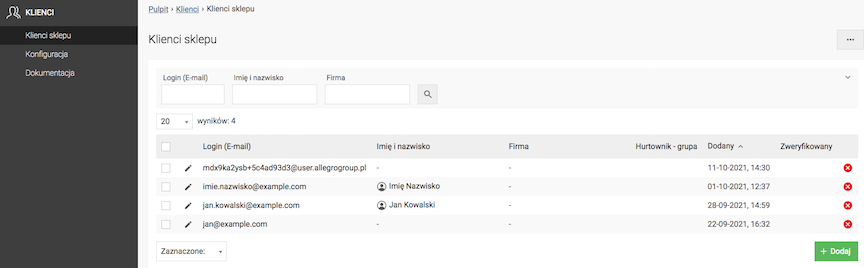
- Press the Add button.
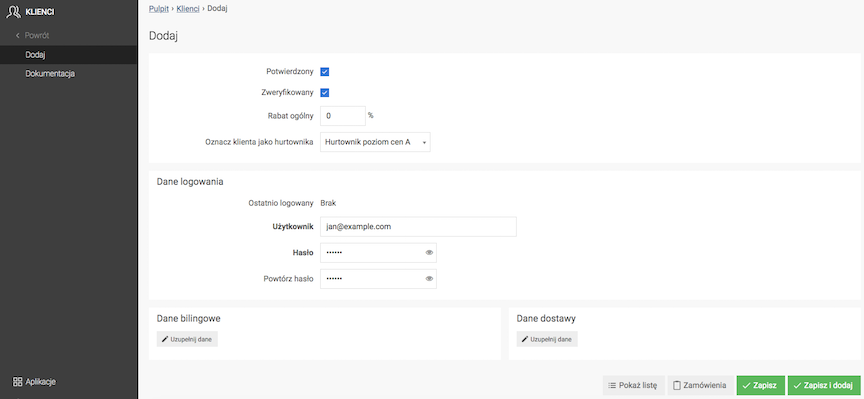
- Check Confirmed,
- Check Verified,
- Enter General discount,
- Enter User (e-mail address),
- Enter Password,
- Repeat Password,
- Press the Save button.
Checking the verified field in the customer edit will cause an email to be sent to the customer with the content that can be defined in Panel → Applications → Mail handling → Mail texts → Customer - data verification.
Editing a customer
Adding billing data
Select Billing data
Click Add new billing data
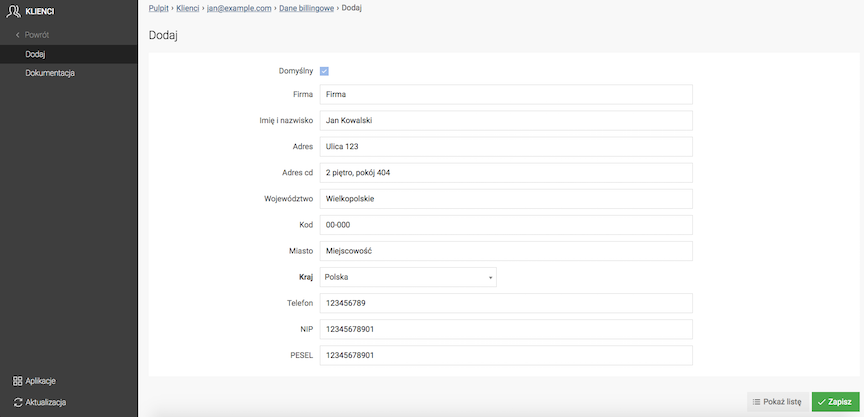
- Enter Company name,
- Enter First and last name,
- Enter Address,
- Enter Continuation of address,
- Enter Province,
- Enter Code,
- Enter City,
- Select Country,
- Enter Phone,
- Enter NIP,
- Enter PESEL,
- Press the Save button.
Adding additional customer billing data
Select Show list
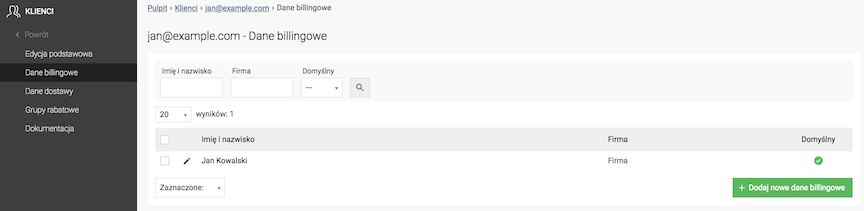
- Press the Add new billing data button,
- Check Default,
The new data will become the default for the customer.
- Enter Company name,
- Enter First and last name,
- Enter Address,
- Enter Continuation of address,
- Enter Province,
- Enter Code,
- Enter City,
- Select Country,
- Enter Phone,
- Enter NIP,
- Enter PESEL,
- Press the Save button.
Adding delivery data
Select Delivery data
Click Add new delivery data
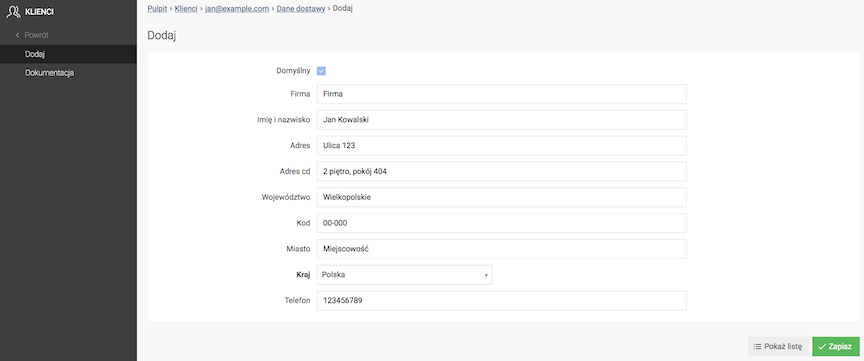
- Enter Company name,
- Enter First and last name,
- Enter Address,
- Enter Continuation of the address,
- Enter Province,
- Enter Code,
- Enter City,
- Select Country,
- Enter Phone,
- Press the Save button.
Adding additional customer delivery data
Select Show list
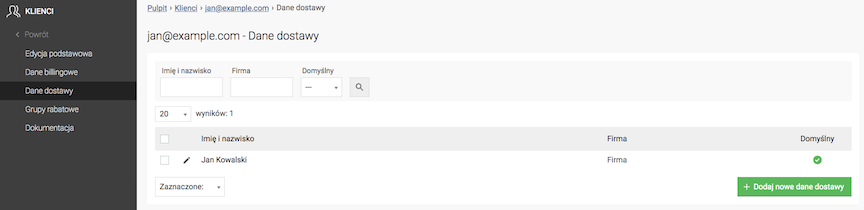
- Press the Add new delivery data button,
- Check Default,
The new data will become the customer's default.
- Enter Company name,
- Enter First and last name,
- Enter Address,
- Enter Continuation of the address,
- Enter Province,
- Enter Code,
- Enter City,
- Select Country,
- Enter Phone,
- Press the Save button.
Adding a general discount to the customer
Select Basic edit
The individual discount for the customer is overwritten if it belongs to a discount group with a higher discount.
If the customer belongs to the 20% discount group and their general discount is set to 15%, then the customer has a 20% discount on products, just like other customers belonging to this discount group.
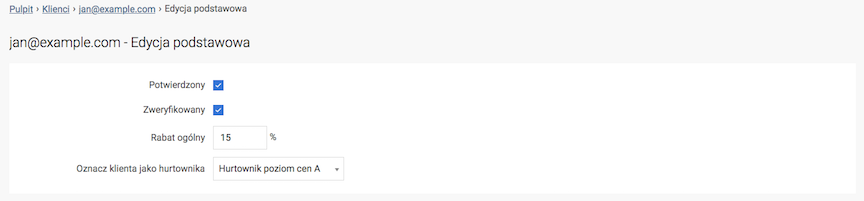
- Enter General Discount,
- Press the Save button.
The customer will find the information in their panel
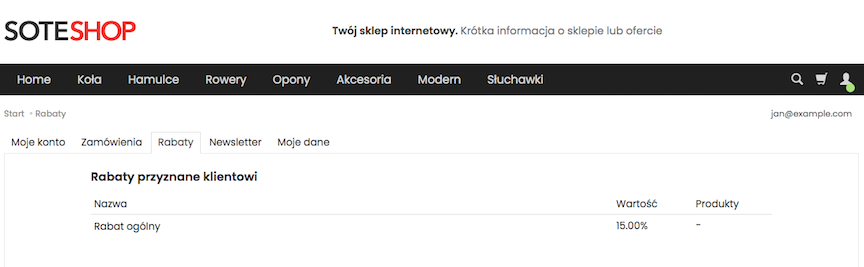
See the discounts documentation.
Assigning a customer to a discount group
Select Discount Groups
- Check Discounts,
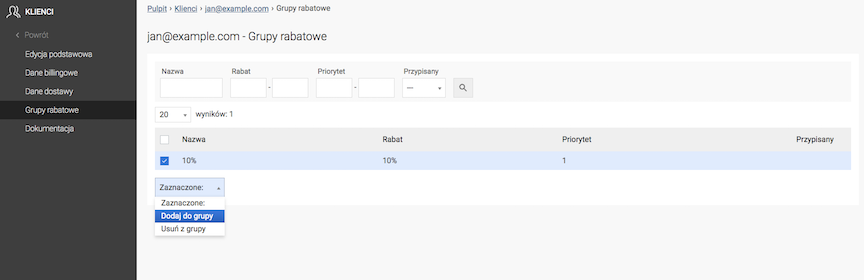
- Select Selected: Add to group,
- Confirm that You are sure you want to perform the "Add to group" operation on the selected records.
The customer will find the information in their panel
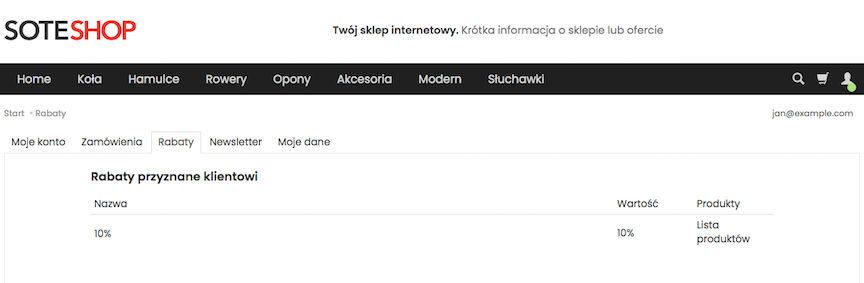
See the discounts documentation.
Marking a customer as a wholesaler
Select Basic Edit
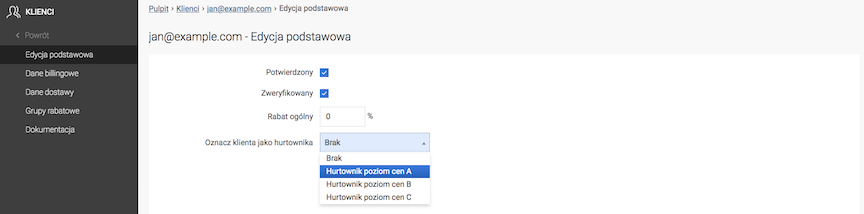
- Select Mark customer as wholesaler,
- Press the Save button.
See how to add wholesale prices to a product.
Customer configuration
In the admin panel go to Applications → Customers
Select Configuration
Customer form configuration
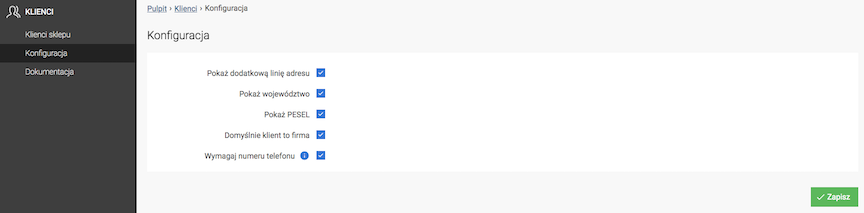
- Check Show additional address line,
- Check Show province,
- Check Show PESEL,
- Check Default customer is a company,
- Check Require phone number,
The phone number will have to be provided by the customer when placing an order and registering a new account.
- Press the Save button.
Two-factor authentication for customers
Two-factor authentication (2FA) increases the security of customer accounts. In addition to a username and password, logging in requires a one-time code generated by an authenticator app installed on a phone or sent to an email address.
Configuration
Go to Panel → Applications → Security.
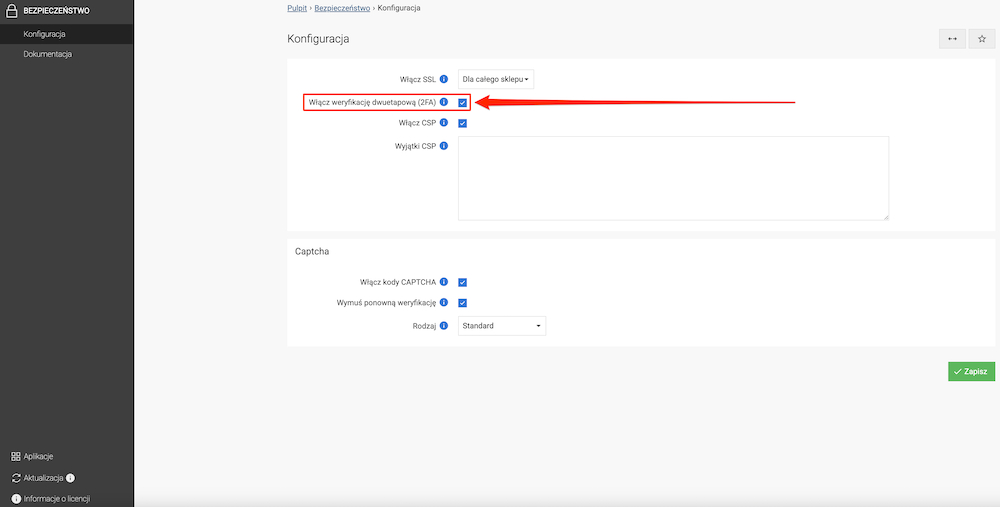
- Select Enable two-factor authentication (2FA) - Protects store customer accounts with two-factor authentication. Customers will also need to enable two-factor authentication in their own accounts.
- Click Save.
See the documentation for Security.
After enabling this option, go to Panel → Applications → Customers → customer name → Basic editing.
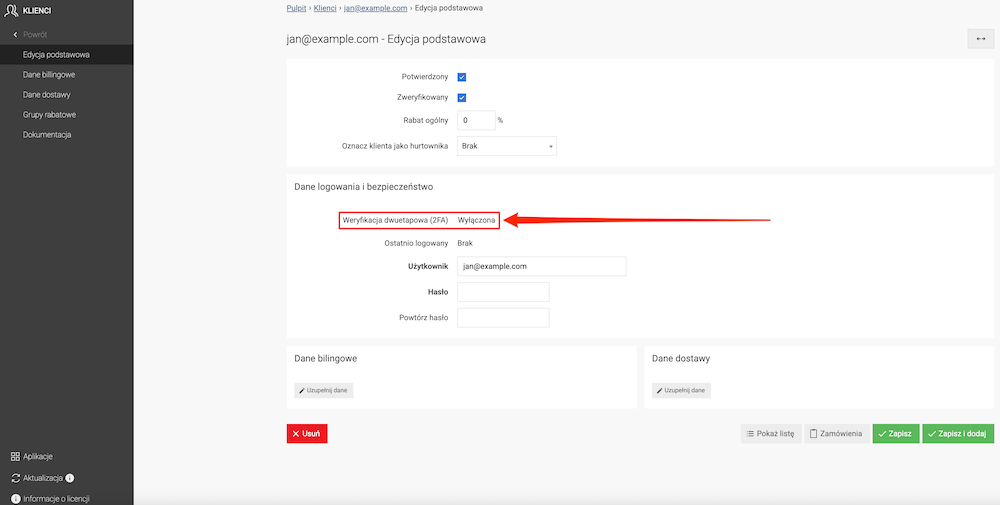
The Two-factor authentication (2FA) field shows whether two-factor authentication is enabled or disabled for the customer's account.
Customers perform the following steps themselves on their phones and after logging in to their store accounts.
The following instructions for installing Google Authenticator and setting up two-factor authentication are available in the standard version of the software as a separate page in the store.
You can find them under Panel → Design → Web pages → Two-factor authentication using a mobile app.
Installing Google Authenticator
First, install Google Authenticator on your phone. The app is available for both Android devices and iPhones.
Download the app from the appropriate store for your phone:

|

|
- On your phone, open Google Play if you use an Android device or App Store if you use an iPhone.
- Search for Google Authenticator. You can also use the appropriate link above.
- Make sure the app is published by Google LLC.
- Tap Install in Google Play or the download button in the App Store.
- Wait for the installation to finish, then open Google Authenticator.
- When you open the app for the first time, follow the on-screen instructions. If the app requests access to the camera, allow it so you can scan the QR code.
Setting up two-factor authentication for a customer account
- Go to the store website and click the user icon in the top-right corner, next to the search icon.
- Select Log in and log in to your account. If you do not have an account yet, select Create an account and register with the store.
- After logging in, click the user icon again and go to Login and security.
- Click Enable two-factor authentication.
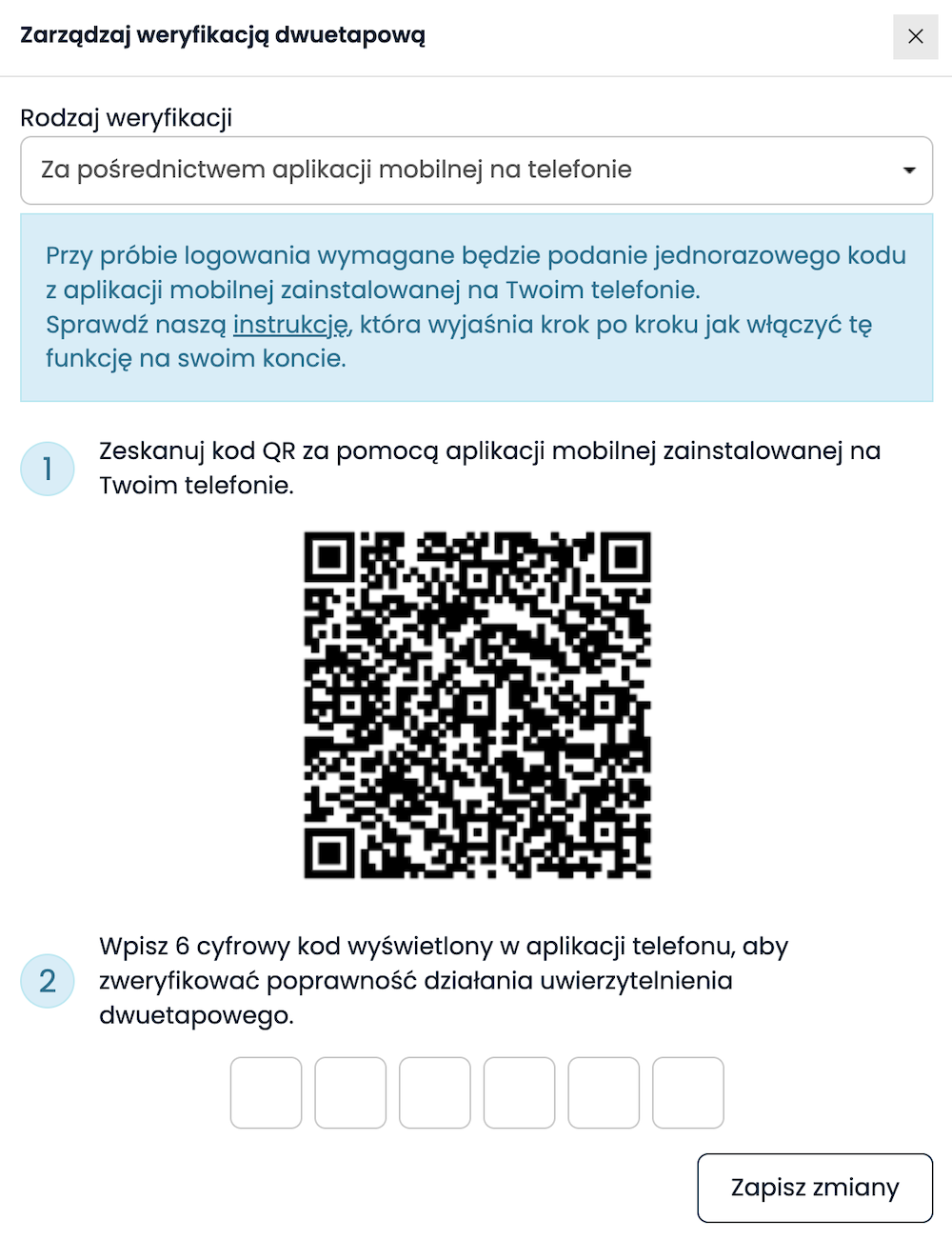
- From the Verification type list, select Via a mobile app on your phone.
After selecting verification using a mobile app, a QR code and fields for entering a one-time code will appear on the screen.
- On your phone, open Google Authenticator.
-
In the app, select the option to add a new code or account, then select the option to scan a QR code.
Button names and locations may vary slightly depending on whether you use Android or iOS and on the installed version of Google Authenticator.
- Use your phone to scan the QR code displayed on the store website.
-
After scanning the code, the store account will be added to Google Authenticator. The app will start displaying a 6-digit code required for verification.
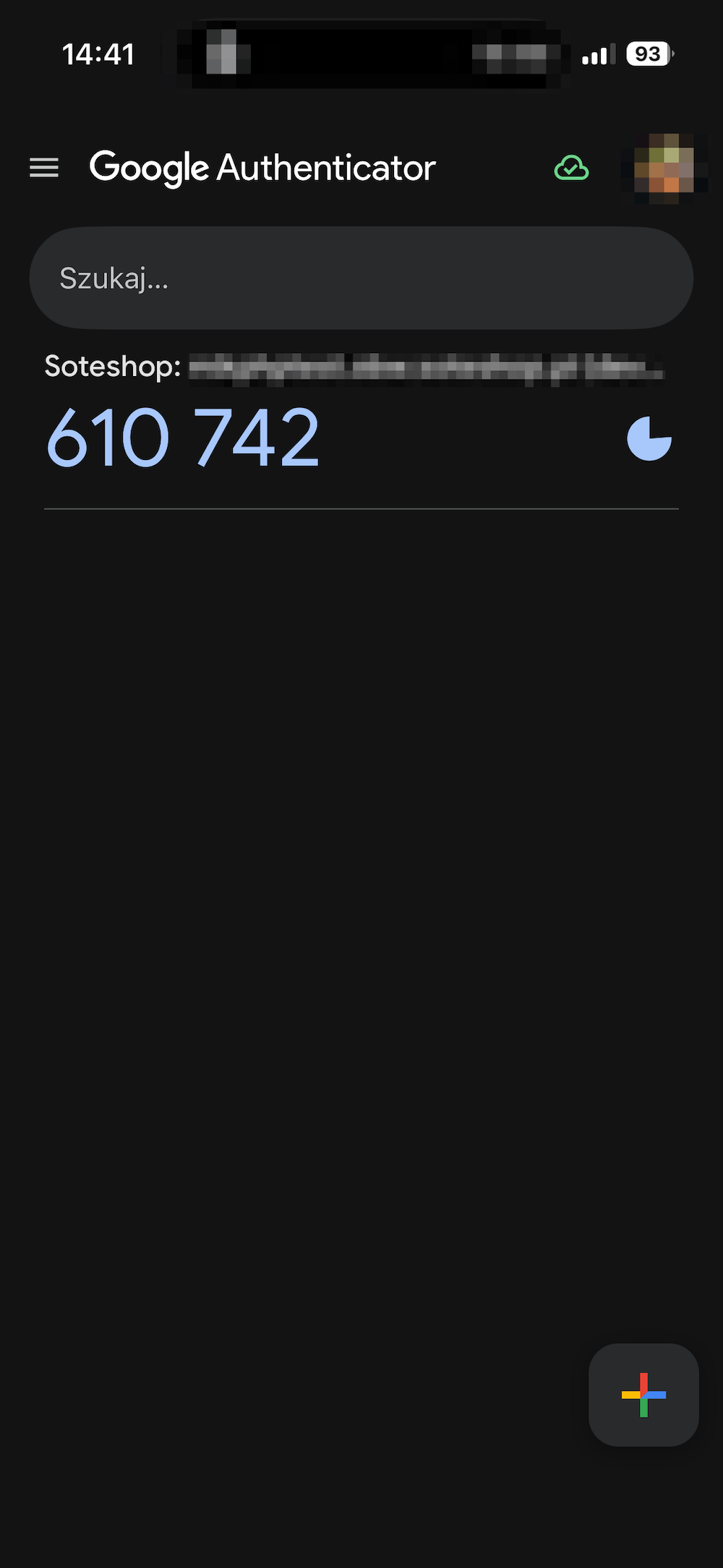
- Enter the 6-digit code generated by Google Authenticator into the fields on the store website.
- Click Save changes.
- After successful verification, you will be shown one-time codes. Save them and keep them in a safe place.
Important: We recommend saving your one-time codes in a safe place. These codes allow you to access your account if you lose access to your mobile device or authenticator app.
After saving the changes, two-factor authentication using a mobile app will be active. When the store asks for additional verification during a subsequent login, open Google Authenticator and enter the 6-digit code currently displayed.
Setting up two-factor authentication via email
Email verification allows you to confirm a login using a one-time code sent to the email address associated with your customer account. This method does not require installing an app on your phone.
- Go to the store website and click the user icon in the top-right corner, next to the search icon.
- Select Log in and log in to your account. If you do not have an account yet, select Create an account and register with the store.
- After logging in, click the user icon again and go to Login and security.
-
Click Enable two-factor authentication.
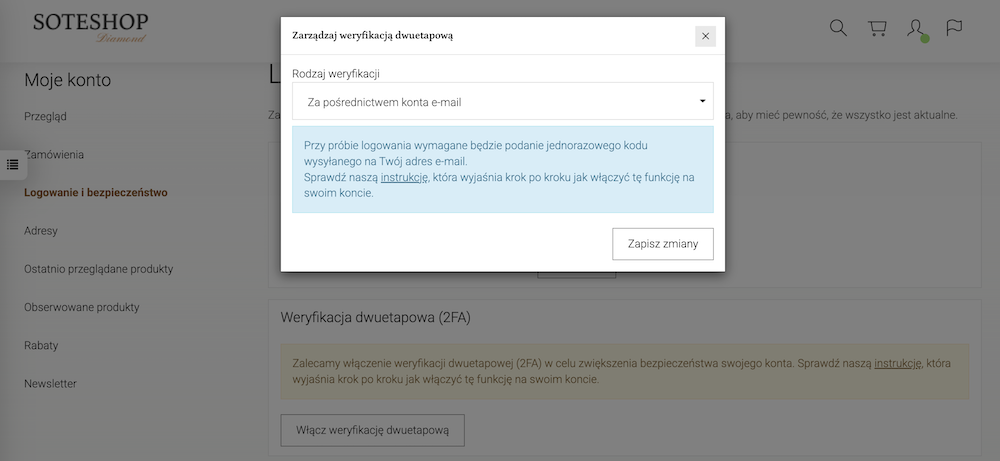
- From the Verification type list, select Via email.
- Click Save changes.
When the store asks for additional verification during a subsequent login, check the inbox associated with your customer account. Read the code in the email you receive and enter it in the verification form on the store website.