Autopay – a modern system with various payment methods.
Autopay (formerly Blue Media) supports all the most popular payment methods chosen by customers, from automatic payments of the 27 largest banks via Pay by link (including mTransfer, Pekao24, iPKO), through card payments (VISA, VISA Electron, MasterCard, and Maestro), to BLIK. Learn how to enable online payments supported by Autopay. Autopay payment system page: https://autopay.pl/oferta/platnosci-online
Table of contents
SOTESHOP. Autopay (formerly Blue Media) – see how to enable fast Autopay payments in your store.
Configuration
- Go to the Autopay portal – https://portal.autopay.eu and start registration in the Autopay portal.
- Fill in all required data, click the link received via email, and enter the SMS code.
- After the first login, set a new password for the Autopay portal.
- In the administration panel, go to Applications → Autopay

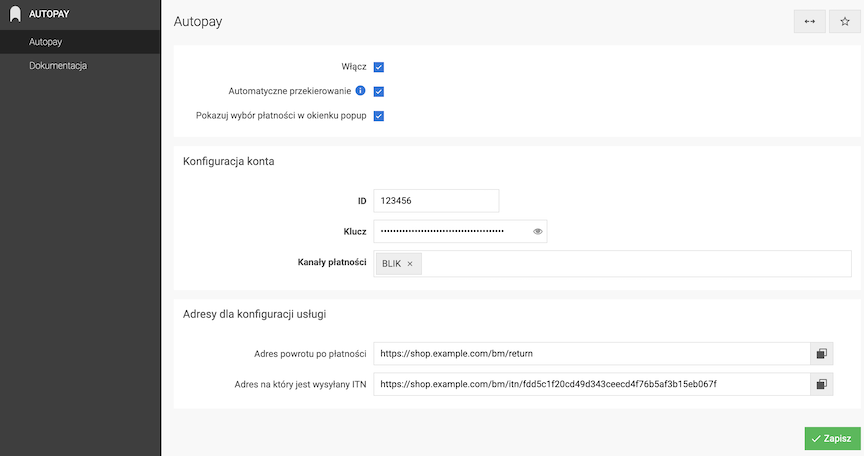
- Select Enable,
- Select Automatic redirect, which redirects automatically to the payment page after placing an order,
- Select Show payment selection in a popup window,
- Copy the ID from the Autopay panel → Stores and paste it into the ID (Identifier) field,
- Copy the Key from the Autopay panel → Stores → store name → Services → store name and paste it into the Key field,
- Click the Save button.
Registration in the Autopay panel
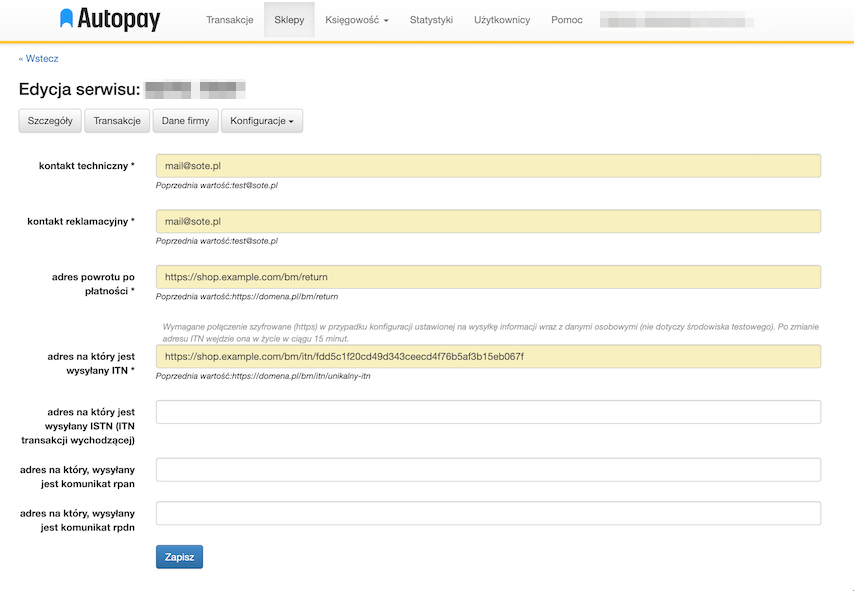
- Go again to https://portal.autopay.eu and navigate to Stores → store name → Services → store name → Edit
- In the technical contact field, enter the main email address used in the SOTESHOP panel.
- In the complaint contact field, enter the same email address from the SOTESHOP panel or a separate technical email if you use one.
- From the SOTESHOP panel, copy the return URL after payment (e.g.
https://[domain]/bm/return) and paste it into the appropriate field in the Autopay portal. - From the SOTESHOP panel, copy the ITN notification URL (e.g.
https://[domain]/bm/itn/unikalny-itn) and paste it into the appropriate field in the Autopay portal.
See how to enable a new payment method in the store