Affiliate Program
The Affiliate Program helps you grow sales by working with partners and customers who promote your store's offer. A partner can share their assigned discount code on social media, on their own website, through their communication channels, or directly with their audience. A person using the code receives a discount, while the partner earns a commission on the completed order. You set the discount and commission rates, and the system automatically assigns orders to partners and calculates the commissions due after the specified waiting period. In the store panel, you can manage partners, settlements, and reports, while each partner has their own panel with access to their codes, calculated commissions, and current balance.
- Configuration
- Partner account
- Partner discount codes
- Partner panel
- Orders with a partner code
- Partner commissions
- Settlements
- Reports
This feature is available only for SOTESHOP AI VIP.
Configuration
In the admin panel, go to:
Applications → Affiliate Program → Configuration
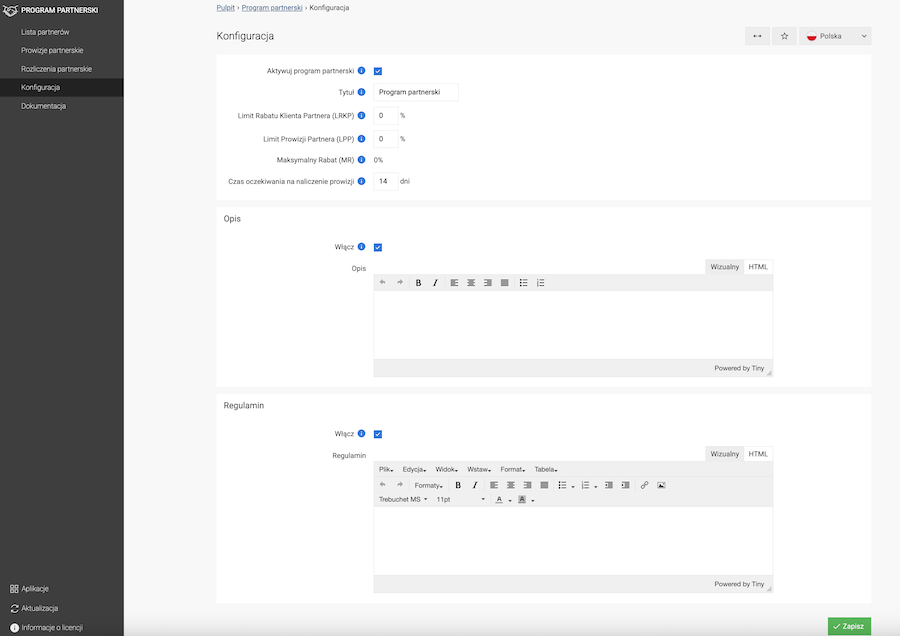
- Check Enable Affiliate Program.
- Enter the Title - the Affiliate Program title displayed on the Affiliate Program page and in the customer account menu.
- Set the Partner Customer Discount Limit (LRKP) - the maximum discount that can be assigned to a discount code for the partner's end customer.
- Set the Partner Commission Limit (LPP) - the maximum commission that can be defined for any partner. The commission is calculated from the price after applying the customer's discount (LRKP).
- Check the Maximum Discount (MR) - the Maximum Discount (MR) determines the total cost of the Affiliate Program. It includes the customer discount (LRKP) and the partner commission (LPP).
- Set the Commission calculation waiting period - the number of days from the moment the order status changes after which the partner's commission can be calculated (for example, after the period for returns or order cancellation). Setting the value to 0 causes the commission to be calculated immediately after the order is fulfilled. This setting may be useful when testing the Affiliate Program.
- Enable and enter the Description - displays the description on the Affiliate Program page.
- Enable and enter the Terms and Conditions - displays a link to the terms and conditions on the Affiliate Program page.
- Press the Save button.
The maximum discount is calculated using the following formula:
MR = LRKP + LPP - (LRKP × LPP) / 100The partner's commission is calculated from the product price after applying the discount granted to the customer.
Partner account
The partner must have a standard customer account in the store. If the account does not exist, it must first be created.
Go to:
Applications → Customers
- Find the customer who is to become a partner.
- Go to the customer's edit page.
- Press the Create new partner button.
- Check Active.
- Set the Partner account expiration date - leaving the date empty means that the partner account remains active indefinitely.
- Enter the Bank account number.
- Select the Payment method.
- Enter a Note - it is visible only to the administrator.
- Set the Maximum Partner Customer Discount (MRKP).
- Set the Maximum Partner Commission (MPP).
- Press the Save button.
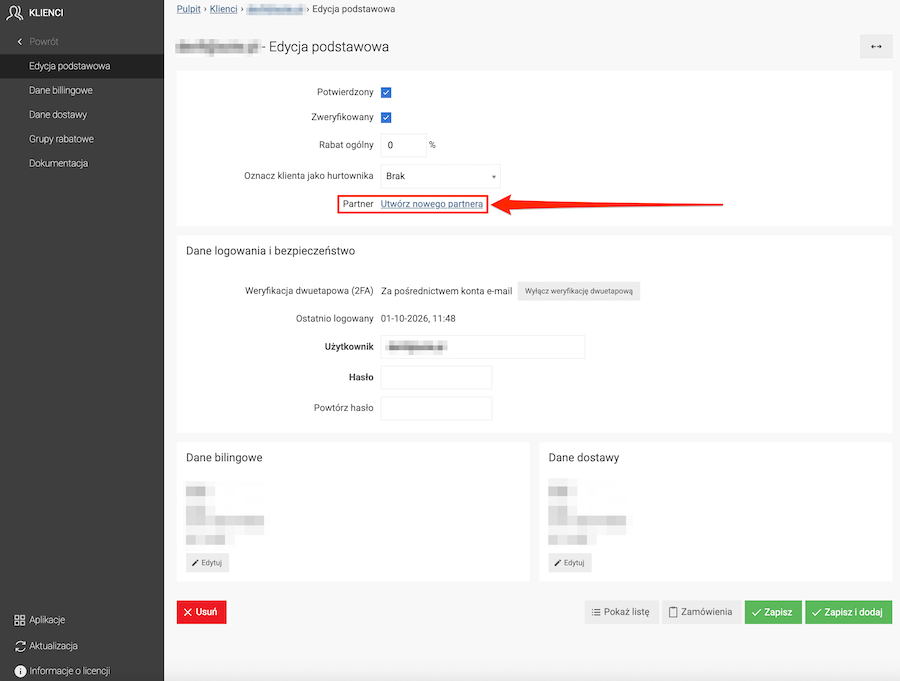
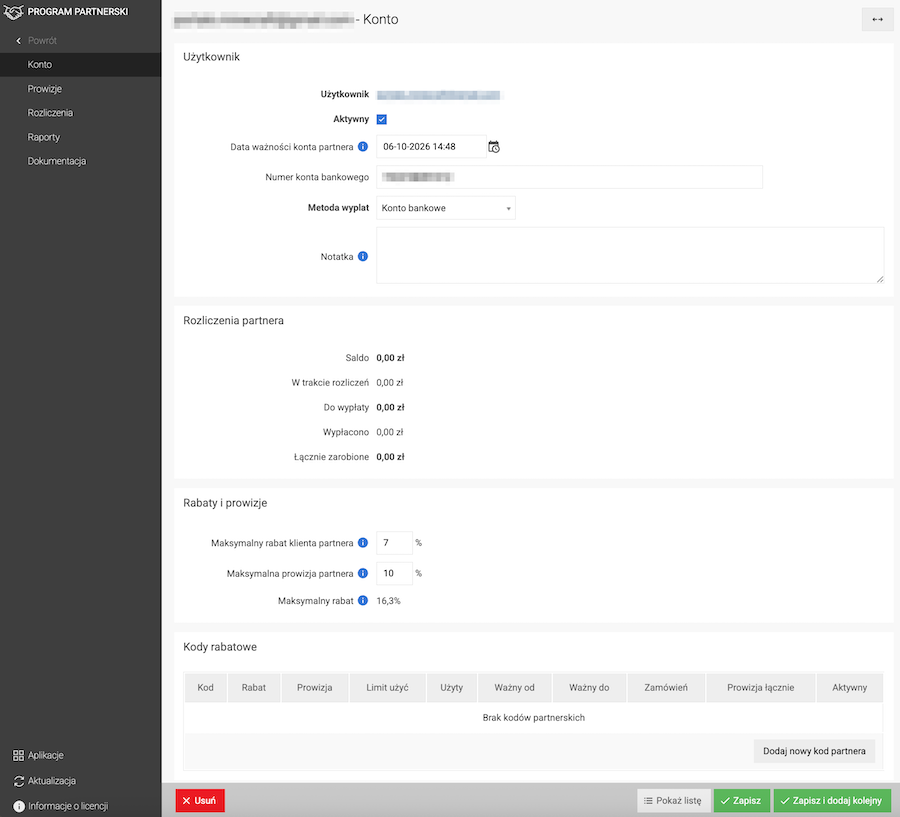
MRKP determines the maximum customer discount that can be set in this partner's discount codes. MPP determines the maximum partner commission that can be assigned to the partner's discount codes.
Partner discount codes
After creating a partner, you need to assign a discount code to them.
Go to:
Applications → Affiliate Program → Partner list
- Find the partner and go to their edit page.
- Press the Add new partner code button.
- Set the discount for the customer.
- Check Partner discount.
- Select the Assigned partner.
- Set the Partner commission (PP) - calculated from the price after applying RKP.
- Press the Save button.
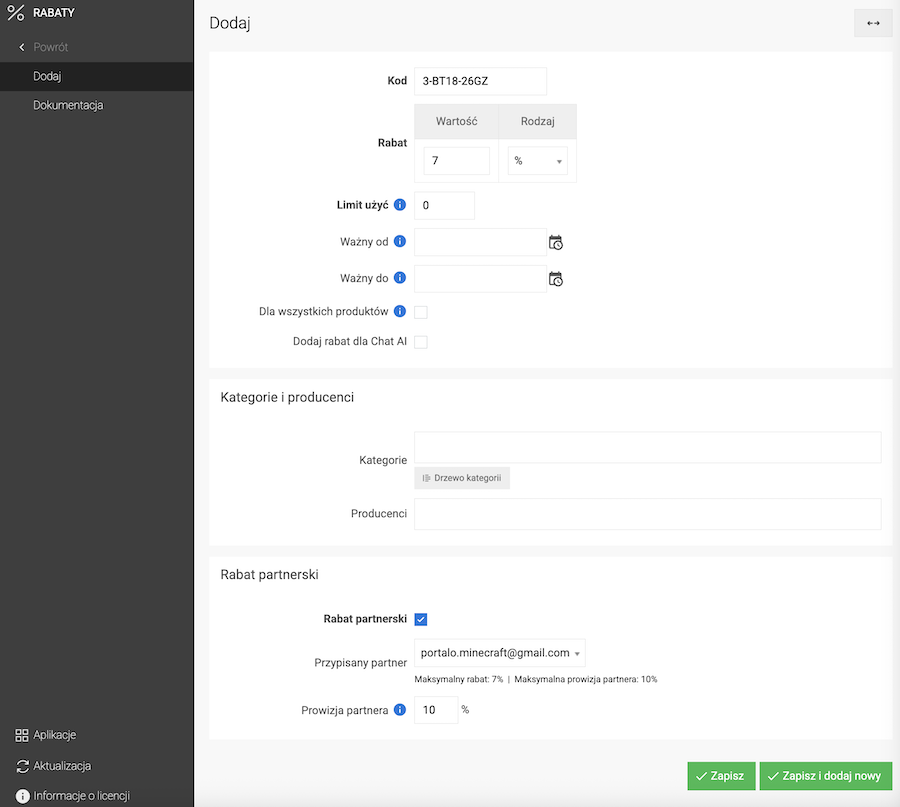
See the Discount Codes documentation.
When creating a code, the system automatically suggests the maximum customer discount and the maximum commission configured for the partner account. These values can be reduced.
Partner panel
After the partner account has been configured, the partner can log in to the store and go to the Affiliate Program section.
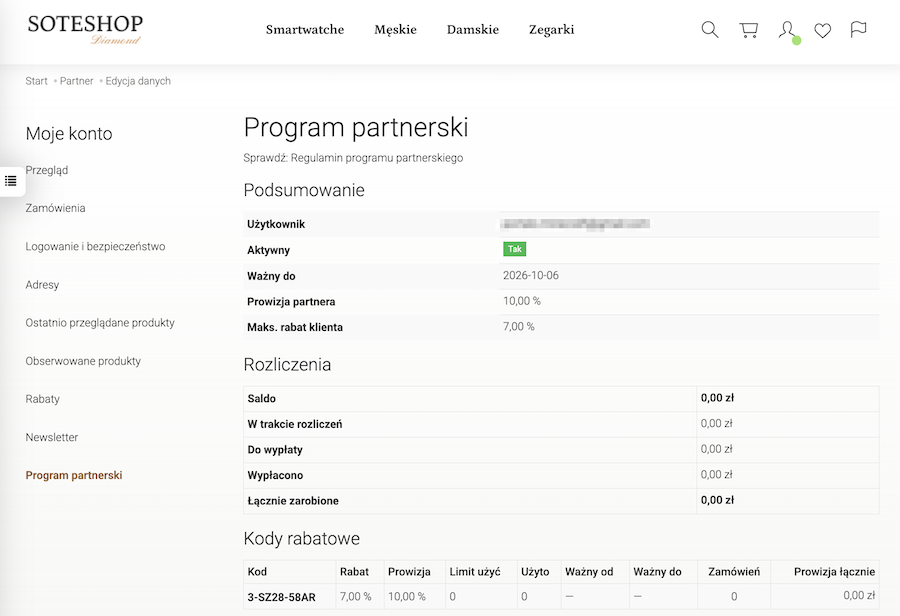
The partner panel contains, among other things:
- assigned discount codes,
- discount and commission rates,
- information about code usage,
- calculated commissions,
- partner balance,
- information about settlements and partner orders.
Orders with a partner code
Before using partner codes, make sure that discount code support is enabled.
Go to:
Applications → Discounts → Configuration
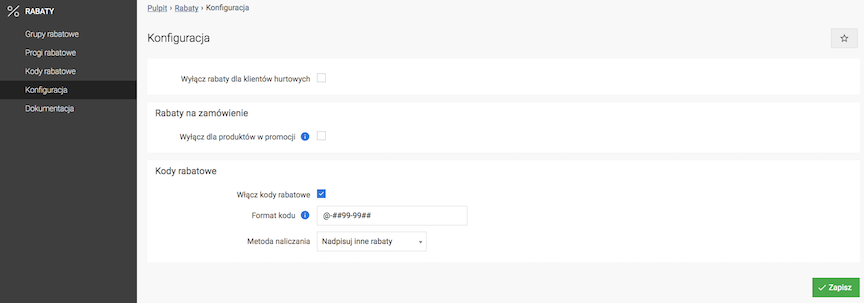
- Check Enable Discount Codes.
- Press the Save button.
When placing an order, the customer enters a discount code assigned to the partner. Once the code is applied, the system calculates the appropriate discount.
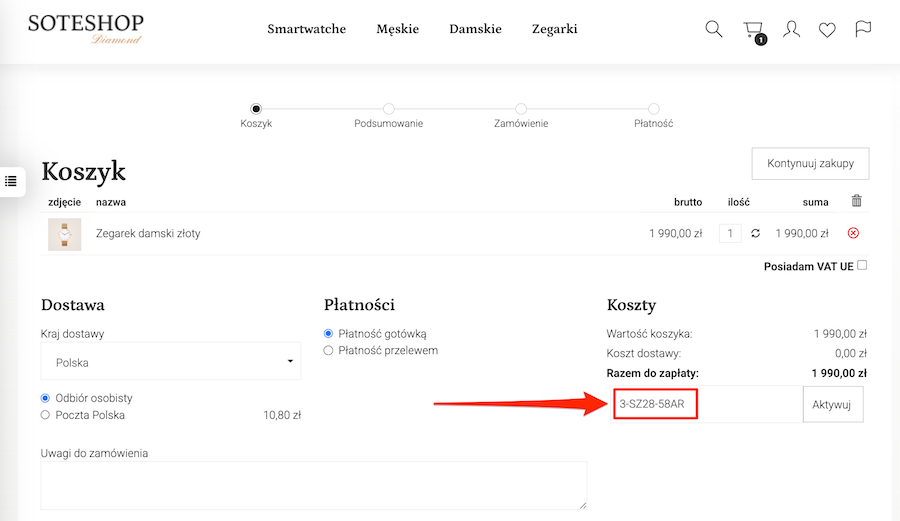
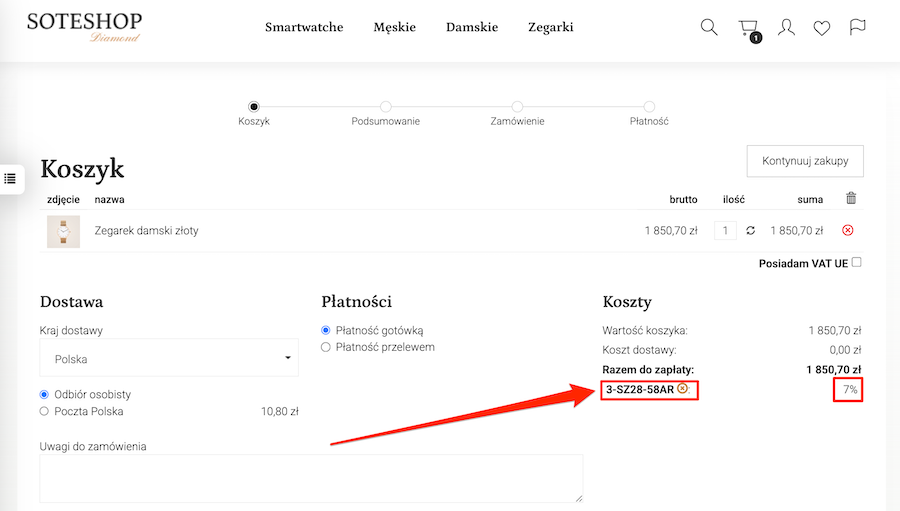
When testing the Affiliate Program, use a different email address for the order than the address assigned to the partner account.
After placing the order, go to its details in the admin panel.
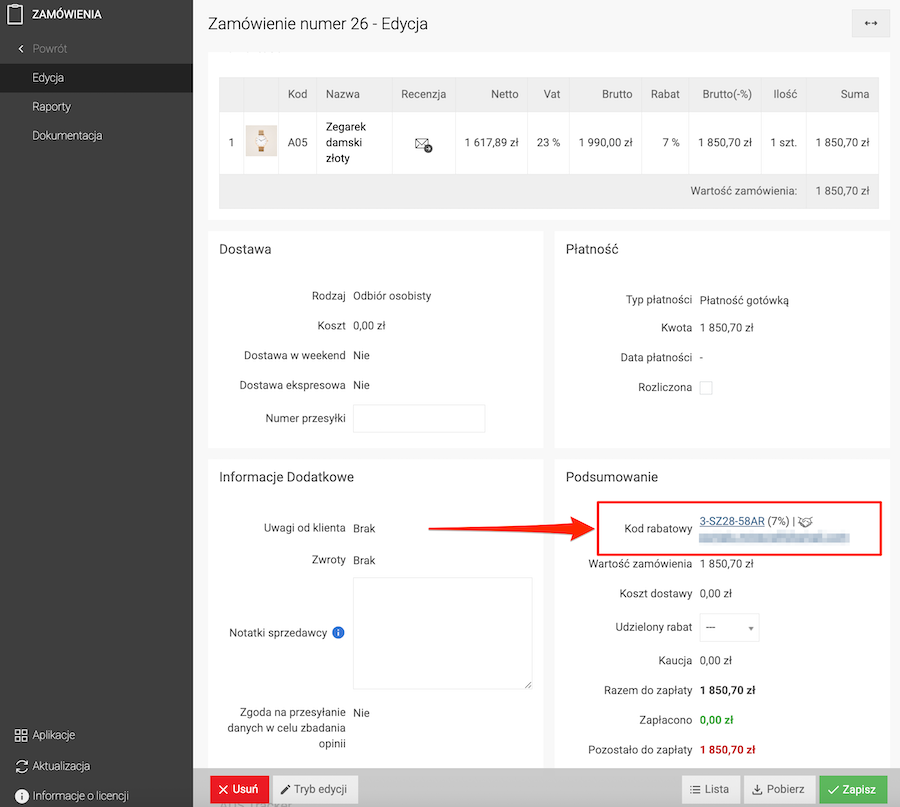
The order displays information about the partner code used, the discount granted and the associated partner account.
- Open the order details.
- Check the partner code information.
- Change the order status to Fulfilled.
- Press the Save button.
Partner commissions
Go to:
Applications → Affiliate Program → Partner Commissions
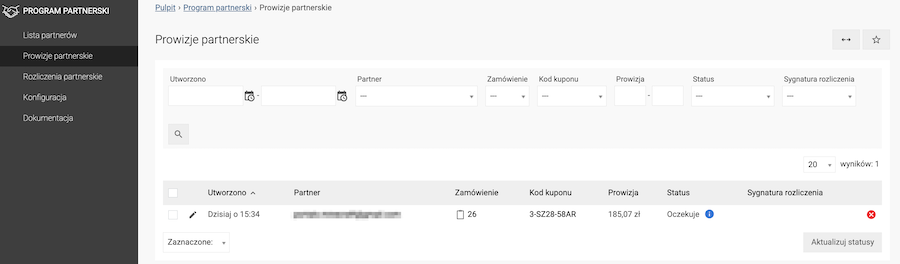
The list contains commissions associated with partner orders.
After an order has been fulfilled, the system waits for the period specified in the Commission calculation waiting period field. Once this period has passed, provided that the order has not been returned, for example, the commission receives the Commission calculated status.
The Commission calculated status means that the funds have been added to the partner's balance.
Settlements
Settlements can be generated at any time. A monthly settlement cycle is recommended for partners.
Go to:
Applications → Affiliate Program → Settlements
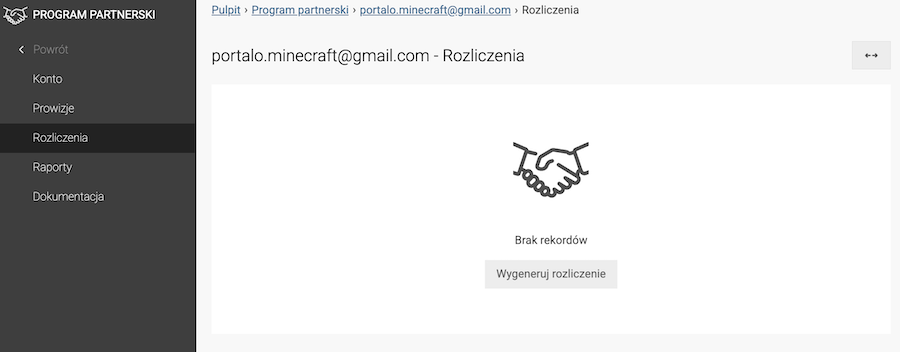
- Press the Generate settlement button.
- Open the generated settlement.
- Change its status to Approved or Paid.
- Press the Save button.
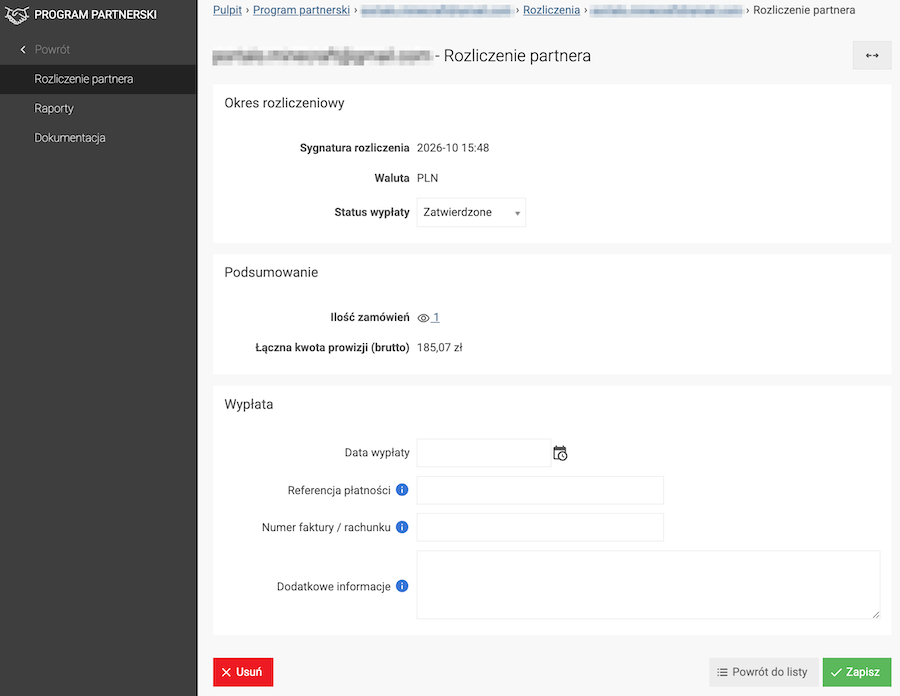
Important: Once a settlement has been marked as Paid, this operation cannot be reversed.
After a settlement is completed, the balance and settlement information is also updated in the partner's account.
Reports
Partner order reports
Go to:
Applications → Orders → List
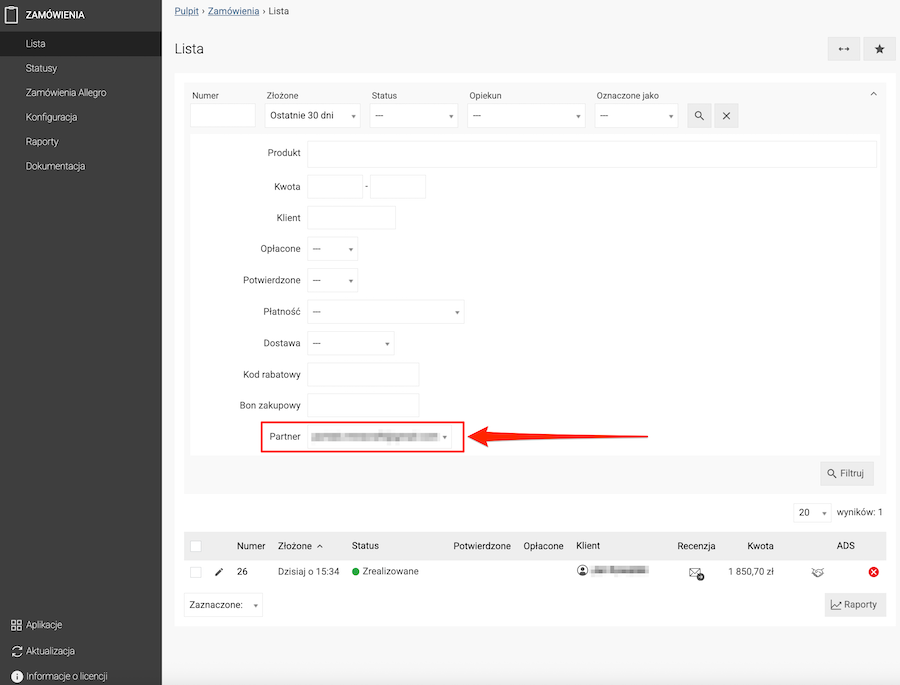
- In the filters, select Partner.
- Select a specific partner or choose All partners.
- If necessary, set additional filters, such as the date or order status.
- Display the order list.
- Press Reports to open sales charts related to the Affiliate Program.
Partner reports
Individual commission reports are also available for each partner.
Go to:
Applications → Affiliate Program → Partner list
- Select a partner.
- Go to the partner's edit page.
- Select the Reports tab.
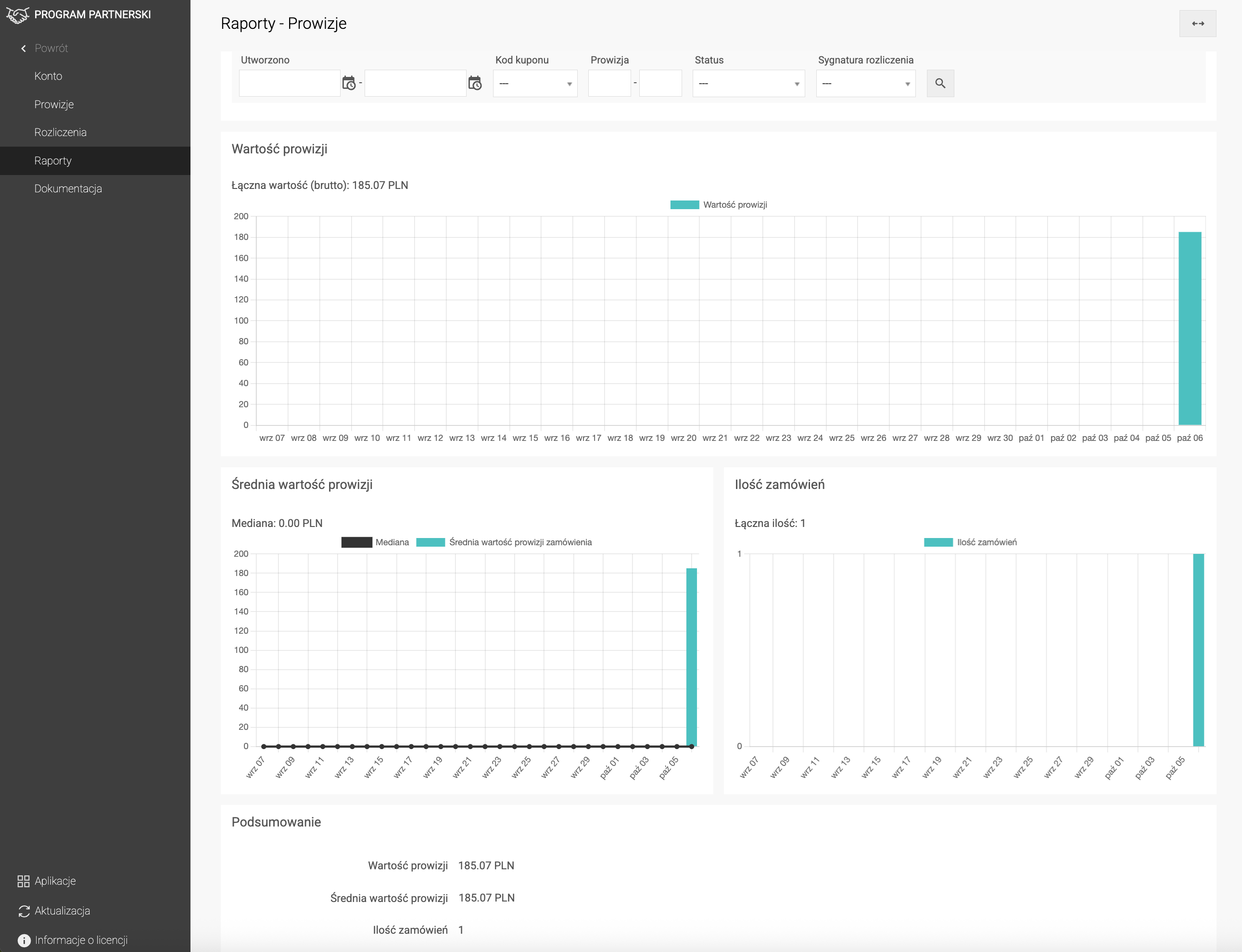
The report presents commission data and sales results associated with the selected partner.